What’s New? Quarterly Release 25.8 Titan
Written by Callum Sinclair – Product Engingeering Manager
Comet 25.8.0 Titan
Comet 25.8.0 Titan, our latest Quarterly release, brings 4 new features and 7 enhancements, including a General Access Beta for Proxmox VE Protected Item backup, an MSI Installer for Comet Backup desktop app on Windows, an RPM Installer for Comet Backup desktop app on Linux, and much more.
The full set of changes can be found in the release notes.
Why Titan?
This Quarterly release is named after Saturn’s moon Titan). Fun fact: Titan, Saturn’s largest moon, is the only moon with a substantial atmosphere and the only place besides Earth known to have liquids on its surface, including clouds, rain, rivers, lakes and seas of liquid hydrocarbons like methane and ethane.
Webinar announcement
Join us for our Quarterly webinar on Tuesday, September 23rd (4pm ET / 1pm PT). Comet’s CTO, Mason, will cover all the latest product updates, with a live question-and-answer session at the end.
New Feature: Proxmox Virtual Environment Protected Item General Access Beta
With Comet 25.8.0 Titan, our new Proxmox VE Protected Item is now available as a General Access Beta feature.
Proxmox Virtual Environment is a complete, open-source server management platform for virtualization.It tightly integrates the KVM hypervisor, Linux Containers (LXC), software-defined storage, and networking functionality on a single platform. With the integrated web-based user interface you can manage VMs, containers, high availability for clusters, and the integrated disaster recovery tools with ease.
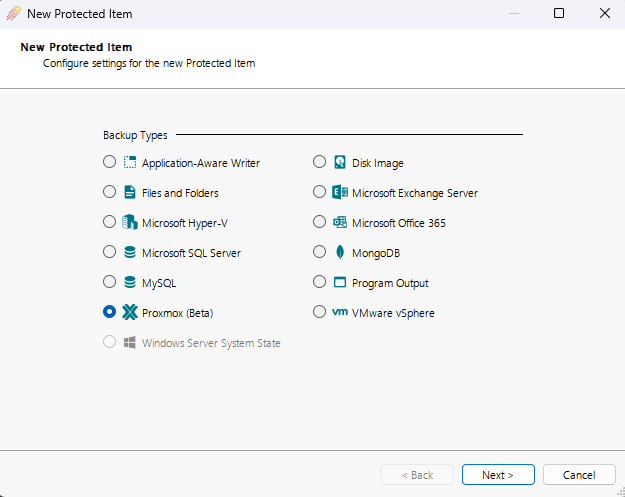
Features of Comet’s Proxmox VE Backup
Note: Features listed here are work in progress and may not be available during the beta
- Virtual Machine and Container Backup & Restore
- Restore Virtual Machines to Hyper-V, Proxmox and VMware
- Restore Physical Machines from Disk Image Protected Items
- Migration Tool from Hyper-V and VMware
- As these features are in beta, they come with a risk of bugs or unintended behavior
- Check this link for known beta limitations
Migrate virtual environments from VMware to Proxmox
Our new Proxmox VE Protected Item can be used to migrate VMs away from VMware onto a Proxmox Cluster.
If you have an existing VMware Protected Item with Comet, you can migrate to Proxmox quickly without losing your backup history. This allows you to restore an older VM backup if required without needing to use any other systems or manage multiple backup jobs per VM.
Once Comet has performed a VMware VM backup, if you set the Proxmox Protected Item to back up the same VM to the same Storage Vault as the VMware Protected Item, Comet’s chunking algorithm will be able to deduplicate the backups together. This has a large number of benefits such as reducing total Storage required to maintain VM backups from multiple hypervisors and significantly faster backups as the first Proxmox VM backup does not need to reupload a lot of data.
Please note:
New Feature: RPM installer for Comet Backup desktop app
We’re proud to announce that a native RPM installer is now available for the Comet Backup desktop app. This is especially useful for MSPs supporting Red Hat, CentOS, AlmaLinux, Rocky Linux, and other RPM-based distributions.

Comet Backup’s RPM installer is ideal for Linux users who want better manageability, consistency, and compliance in their backup deployments.
New Feature: MSI Installer
To provide more flexibility for installing the Comet Backup desktop application on Windows, Comet now offers a new MSI installer option.
Using an MSI installer is great option for mass deployments and supports all the install features and flags that Comet’s .exe installer offers.
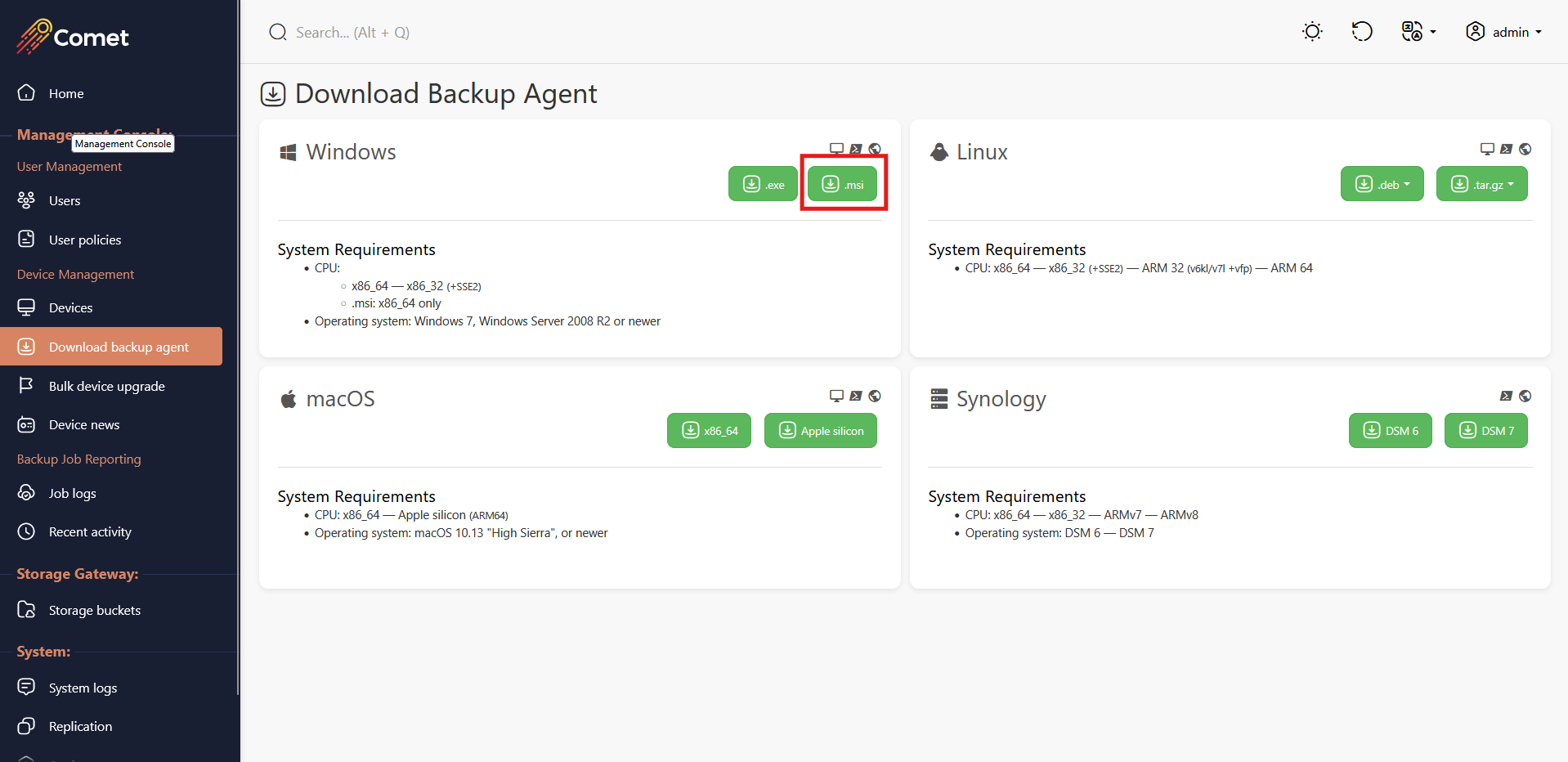
MSPs looking to automate their large scale Comet deployments using products such as Intune can now do this easier than ever before.
New Feature: Automatically Create New Storage Vaults via Policies
You can now automatically create new Storage Vaults when new devices register, based on predefined rules in your device policy.
Since Comet 24.12.0, a new user setting has been available to choose if devices that share the same user account should back up Protected Items to a shared Storage Vault or isolated Storage Vaults.
This has been extended to interact with Comet’s Policy system to set Default Protected Items. A Default Protected Item is a great way to ensure Protected Items are automatically created when a new device is registered to a user.
Now, when the Policy setting under the Storage Vaults tab Automatically create Storage Vault for new devices is configured, new devices registered to a user will have a Default Protected Item created and will have a Storage Vault automatically provisioned and ready to back up.


To make the most out of the Default Protected Item feature, you will need to set a Schedule when configuring the Default Protected Item.
When the Storage Vault for the Schedule is set to The Latest Storage Vault, any new device registered to the user with this policy set will automatically have a Protected Item and new Storage Vault created and will back up data to this new Storage Vault based on the Schedule.

What’s New? Quarterly Release 25.5 Hyperion
Written by Callum Sinclair – Product Engineering Manager.
Comet 25.5.0 Hyperion
Comet 25.5.0 Hyperion, our latest Quarterly release, brings 3 new features and 9 enhancements, including automatic Storage Vault unlocking, automatically switching jobs to use on-disk indexes, a new option to backup everything in a Microsoft 365 domain, and more.
The full set of changes can be found in the release notes.
Why Hyperion?
This Quarterly release is named after Saturn’s moon Hyperion). Fun fact: Hyperion is potato shaped and its deeply cratered surface resembles a sponge. Hyperion rotates chaotically, tumbling unpredictably through space as it orbits Saturn.
Webinar announcement

Join us for our Quarterly webinar on Tuesday 10 June (4pm ET / 1pm PT). Comet’s CTO, Mason, and Product Engineering Manager, Callum, will cover all the latest product updates, with a live question-and-answer session at the end.
New Feature: Automatic Storage Vault unlocking
Storage Vault locking is a core part of Comet that ensures backup and retention passes can run safely on multiple devices sharing the same Storage Vault. A Storage Vault is only locked when critical changes are being made to the data in the Storage Vault, such as when unused data is being removed as part of a retention pass.
As part of our efforts to improve the experience of Comet, we have added functionality to automatically change Storage Vault access keys for some of our supported storage providers. This allows admins to unlock compatible Storage Vaults without the risk of data loss.
The following Storage Vault types are currently supported:
- Comet Storage
- Amazon AWS
- Wasabi
Storage Vaults can also be automatically unlocked. This can be configured in user policy settings. This is great for admins who want to resolve Storage Vault locking issues without introducing a data loss risk.

New Feature: Automatically Switch Jobs To Use On-Disk Indexes
Comet makes use of in-memory indexes to optimise backup and retention pass jobs to maintain a list of where the data is in the Storage Vault. For larger Storage Vaults, this can lead to a large amount of data held in memory. On devices that have a lower amount of RAM, this can cause a job to fail as there is not enough available memory to complete the job. Comet’s solution is to store the indexes on-disk using temporary files instead. This is because devices can often have more free disk space than available RAM.
When a scheduled backup or retention pass requires more RAM than is available, Comet will now automatically switch to store the indexes using temporary files on disk.
Enhancement: New option to back up everything in a Microsoft 365 domain
We are introducing the new “Back up everything” option for Microsoft 365 backups. This option provides a simple way to back up everything within a domain, including any accounts that are added later.


To back up everything with exceptions, users should instead create a group in Microsoft 365 and have the group auto-assign to new accounts. Users to be excluded can be removed from the group, and this group can then be selected in Comet.
Enhancement: Linux Disk Image driver now installs automatically
Comet uses a custom Linux kernel driver backupsnap61 to snapshot a block device during a Linux Disk Image Protected Item backup.
In previous releases, backupsnap61 had to be installed manually using the backupsnap61-install.sh script found in the Comet Backup install directory.
Without backupsnap61 installed, Comet can’t guarantee it can get exclusive read access to a block device. This will appear as a warning in a Linux Disk Image backup job log.
Now, backupsnap61 is installed automatically by Comet to ensure a snapshot driver is always available before starting a Linux Disk Image backup.
Enhancement: Bulk Cancel Jobs using the Comet Management Console
From the Comet Management Console, admins are able to monitor and manage thousands of devices and backup jobs. To continue Comet’s mission to make managing backups as easy as possible, it is now possible to cancel running jobs in bulk from the Job Logs page on a Comet Management Console.
This is an effective way to stop all currently running backup jobs with one click.

Enhancement: Updated Translations
Comet has updated in-app translations for 13 languages. These are Danish, German, Spanish, French, Hebrew, Croatian, Italian, Dutch, Portuguese (Brazil), Portuguese (Europe), Russian, Polish and Thai.
What’s New? Quarterly Release 25.2 Rhea
Written by Callum Sinclair – Product Engineering Manager.
Comet 25.2.0 Rhea
Comet 25.2.0 Rhea, our latest Quarterly release, brings 11 new features and 14 enhancements, including direct virtual machine restores into Hyper-V and VMware, User Grouping, Single device ownership of Storage Vaults and more.
The full set of changes can be found in the release notes.
Why Rhea?
This Quarterly release is named after Saturn’s moon Rhea). Fun fact: Rhea might have its own ring system, which would make it the only moon in our solar system to have rings.
Webinar announcement
Join us for our Quarterly webinar on Tuesday 11 March (4pm EST / 1pm PST)! Comet’s CTO, Mason will cover all the latest product updates, with a live question-and-answer session at the end.
New Feature: Direct VM Restores
Your input is important to our decision making at Comet. Direct VM Restore was a highly upvoted request in our Feature Voting system, so we’re excited to share this with the Comet community.
Direct VM Restores to Hyper-V
You can now restore your Hyper-V and VMware Protected Items directly to a Hyper-V Server without any extra manual steps.
Direct restores into Hyper-V are available from the Comet Management Console and from the Comet Backup desktop app. The following screenshots are from the Comet Management Console.


#### Migrate VMware Guests to Hyper-V
VMware (vSphere or vCenter) virtual machines can be migrated to Hyper-V using Comet. Simply back up VMware guests using Comet’s VMware Protected Item type. Once the guests have been backed up, you will be able to restore the guests using our restore workflows. Comet will automatically convert the guest on the fly at restore time into a format Hyper-V can boot.
Direct VM Restores to VMware
You can now restore your Hyper-V and VMware Protected Items directly to a VMware (vSphere or vCenter) without any manual steps necessary.
Direct restores into VMware (vSphere or vCenter) are available from the Comet Management Console and from the Comet Backup desktop app. The following screenshots are from the Comet Management Console.


#### Migrate Hyper-V Guests to VMware
Similar to our VMware guest migration, you can migrate Hyper-V guests into VMware (vSphere or vCenter) using Comet. All that is required is a backup of the Hyper-V guests using Comet. Then you can use Comet’s restore workflow to directly restore the guest into VMware. Comet will automatically convert the guest on the fly at restore time into a format VMware can boot.
New Feature: Disk Image Restores to Hyper-V and VMware
Comet’s Disk Image Protected Items can now be restored directly into a Hyper-V or VMware (vSphere or vCenter) Server. This removes any need for manual conversions of VMDK files when restoring a physical Disk Image Protected Item into a virtual environment.
Once a Disk Image Protected Item has been backed up using Comet, you will be able to choose if you’d like to restore the Disk Image directly into Hyper-V or VMware. This is a fantastic improvement for customers who need to restore a physical device as soon as possible while they wait for new physical devices or hardware to arrive.
Physical To Virtual Disk Image Migrations
Disk Image Protected Items can also be migrated into a virtual (Hyper-V or VMware) environment permanently using Comet’s new Disk Image restore functionality. This allows customers migrate phyiscal machines into a virtual environment, and continue to protect the machine with our Hyper-V or VMware Protected Item types.
New Feature: Comet Server Roles and Features Renamed
Comet Server Roles were initially named and styled after Windows Server Roles. Customers who have managed or worked with the Windows Server Operating System to manage roles would have been more familiar with this naming style.
To improve the usability of Comet for new and existing partners, all Comet Server Roles have been renamed.
- Auth Role has been renamed to Management Console.
- Storage Role has been renamed to Storage Gateway.
- Constellation Role has been renamed to Cluster Manager.
- Software Build Role has been renamed to Backup Agent Downloads (and its settings have been relocated under Management Console).
These changes better reflect the capabilities of what each role does within Comet.
The Comet Management Console has also been updated to reflect these changes, grouping the related side menu pages and settings under each of the new names.

New Feature: User Grouping
It is now possible to group users in the Comet Management Console. This will allow users belonging to a department, company, cost center, etc. to be grouped logically inside Comet. This makes it easier to find and manage customers belonging to the same group.
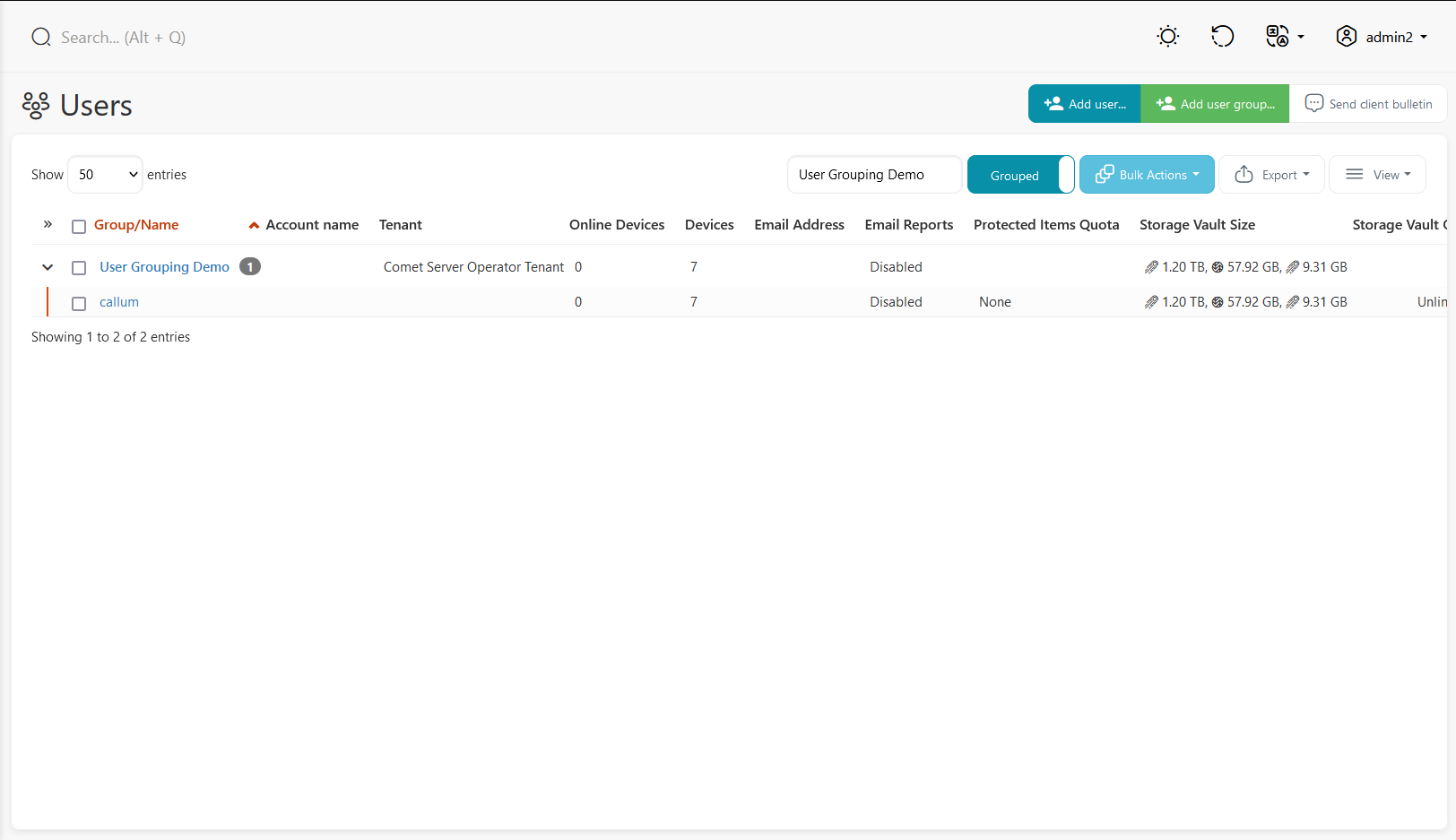
Once a user belongs to a group, admins will be able to assign policies to these users in bulk. This means admins will be able to roll out new policies and settings in one go, without having to remember what policy a user should have applied just based on the name of the user.
New Feature: Single Device Ownership Of Storage Vaults
Single device ownership of Storage Vaults is a new user setting to determine whether devices that share the same user account login should back up Protected Items to a shared Storage Vault or isolated Storage Vaults. There are pros and cons of each option:
Pros of shared Storage Vaults: Data from multiple devices stored in a shared Storage Vault can take advantage of Comet’s deduplication, reducing overall storage requirements.
Cons of shared Storage Vaults: Devices are able to see and restore all data from the other devices, and it is possible for backups to be delayed or missed on a device due to the Storage Vault being locked for retention jobs.
Pros of isolated Storage Vaults: Devices cannot see or restore data from other devices, and there is no risk of delayed or missed backup jobs due to the Storage Vault being locked.
Cons of isolated Storage Vaults: Backup data will not be deduplicated between devices, increasing overall storage requirements.
To configure isolated Storage Vaults, when configuring a new user account select the “Provision storage vaults automatically …” option under Storage Vault Provisioning. For existing users, head to the users account page and set the “Automatically create Storage Vaults for newly registered devices” option to a Storage Template.


To configure shared Storage Vaults, when configuring a new user account select the “Provision storage vaults once …” option under Storage Vault Provisioning. For existing users, head to the users account page and set the “Automatically create Storage Vaults for newly registered devices” option to (none).
This feature gives admins the flexibility to chose how the data for each device in a user is handled. Admins can now chose to prioritise data being deduplicated between devices, or prioritise data not being shared between devices to enforce strict data compliance requirements.
What’s New? Quarterly Release 24.11 Dione
Written by Callum Sinclair – Product Engineering Manager.
Comet 24.11.0 Dione
Comet 24.11.0 Dione, our latest Quarterly release, brings 11 new features and 16 enhancements, including Disk Image for Linux, restoring Disk Image backups to Hyper-V VHDX file format, bulk action improvements and more.
The full set of changes can be found in the release notes.
Why Dione?
This Quarterly release is named after Saturn’s moon Dione). Fun fact: This moon hides a cool secret. Underneath its thick, frozen crust, scientists believe Dione harbors a subsurface ocean, much like its famous neighbor Enceladus. This hidden ocean makes Dione a surprising contender in the search for extraterrestrial life.
Webinar announcement
Join us for our Quarterly webinar on Tuesday 10 December (3pm EST / 12pm PST)](https://app.livestorm.co/comet-backup/quarterly-releases)! Comet’s CTO, Mason and Product Engineering Manager, Callum will cover all the latest product updates, with a live question-and-answer session at the end.
New Feature: Linux Disk Image
Your input is an important part of what we decide to build at Comet. Disk Image for Linux was a highly upvoted request in our Feature Voting system, so we’re excited to share this new backup type with the Comet community.
Linux Disk Image allows you to protect your Linux computers and servers. If your endpoint goes down (with ransomware, hardware failure or human error), having a Disk Image backup allow you to restore to a previous state on a new machine, eliminating the hassle of reinstalling and configuring devices from scratch when a disaster occurs.
Key Features
- Bare-Metal Backup: Protect entire disks and partitions for full system recovery.
- Restore Anywhere: Bring your system back to life on physical hardware, virtual machines or even the cloud.
- Granular Restore: Quickly restore files and/or folders from the backup when key files need to be recovered.
When setting up Linux Disk Image, you are able to choose what disks and/or partitions you want to protect. Once you’ve selected what you’d like to protect, all of the data is deduplicated, compressed, and encrypted as it is backed up on the fly. This means all of your data is secure as it is uploaded and less storage space is used to store the backup.
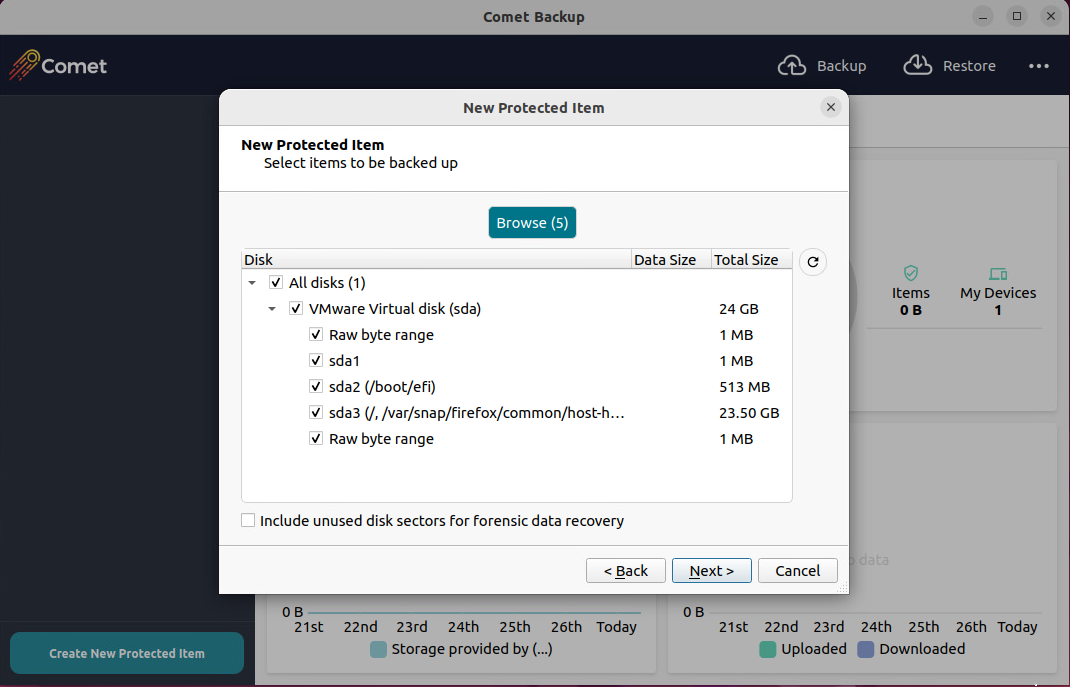
You are able to restore a Disk Image backup to physical hardware, a Hyper-V VM or a VMware VM. Comet’s flexible Disk Image recovery options give you full control over how the Linux endpoint is restored.
If you’d like more information about Linux Disk Image, check out our blog post here
Linux Disk Image is available in Comet 24.9.8 or later.
New Feature: Restore Disk Image To Hyper-V
When restoring a Disk Image backup (for both Windows and Linux), there is a new option to restore the data in Hyper-V VHDX file format, which eliminates the need to manually convert our Disk Image virtual disk files into a format Hyper-V will boot from. This is a great improvement to our Disk Image recovery environment as you can restore backed up devices to Hyper-V even faster.
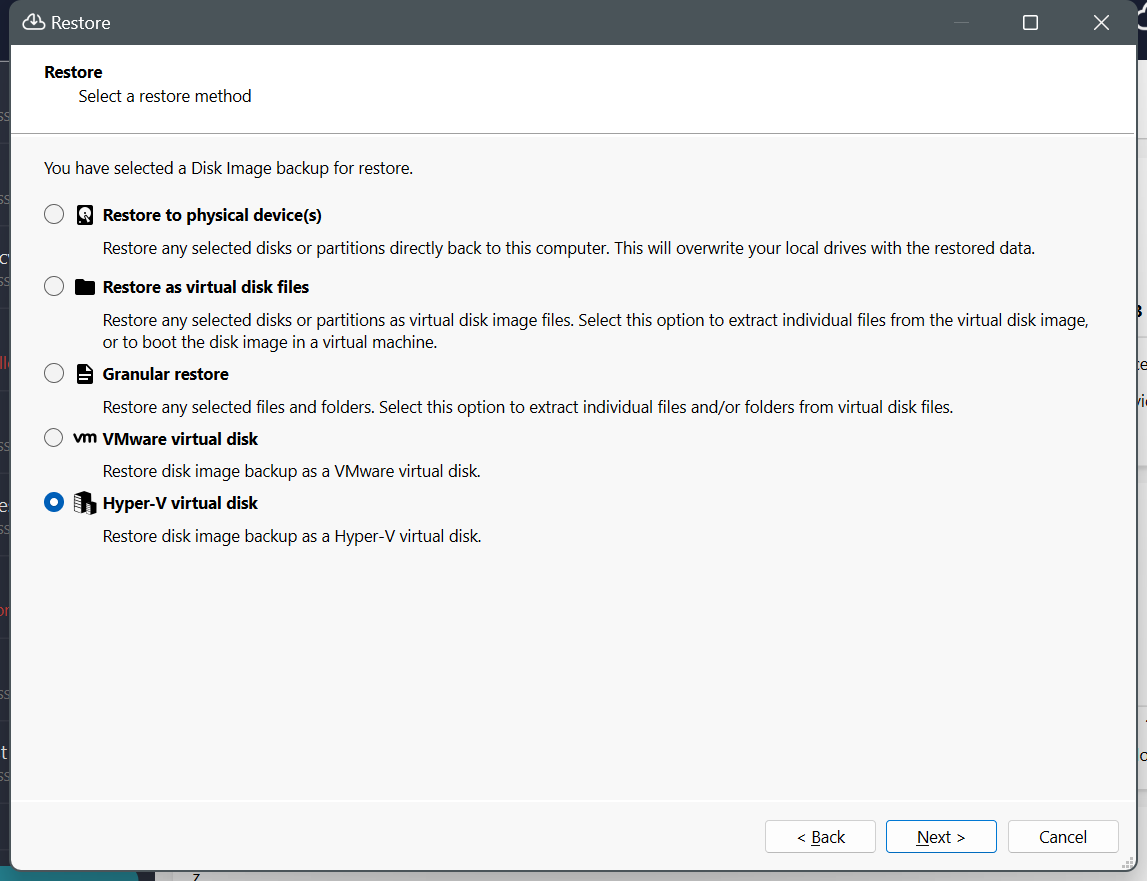
The conversion happens on-the-fly as part of the restore process. The resulting file can be used immediately in Hyper-V, or uploaded to Microsoft Azure to boot in a cloud virtual machine allowing you to restore any Disk Image backup quickly.
This joins our existing support for restoring Disk Image backups to VMware ESXi-compatible files.
New Feature: Bulk Assign User Policies
User Policies are a great way to restrict what a user can and can’t do. For example, you can prevent new Protected Items from being created, or ensure the main disk drive on everyone’s laptop is always protected.
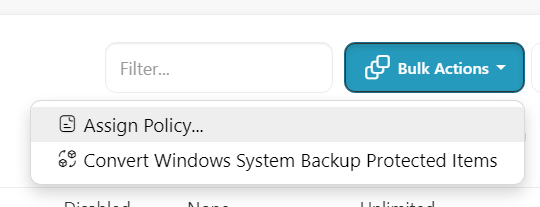
We’ve extended the “Bulk Actions” button on the Users page to support assigning user policies in bulk. This is great for organisations that require the same rules to be applied to a large number of users.
Comet-Hosted: Now Available In Australia
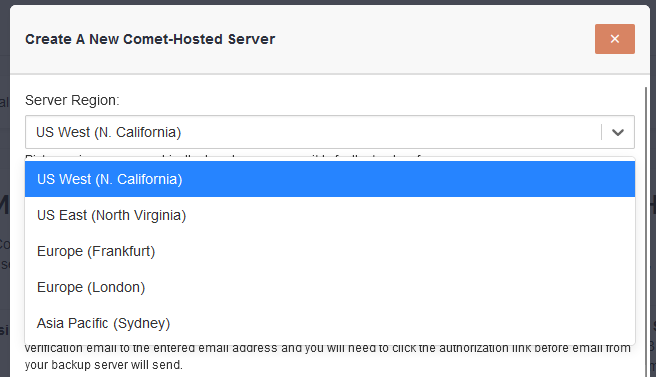
We are pleased to announce that Comet-Hosted is now available to be hosted in Australia. Comet admin now have the choice of five geographically diverse locations to choose from when selecting where their Comet-Hosted server should be located.
New Feature: Hyper-V and VMware Quotas
Comet works with a wide range of service providers, from highly managed to low-touch, and everywhere in-between. If you are a service provider who offers the software directly, you may be want to restrict your customer from backing up additional virtual machines. To support this, we have added a quota feature for the number of Virtual Machines:
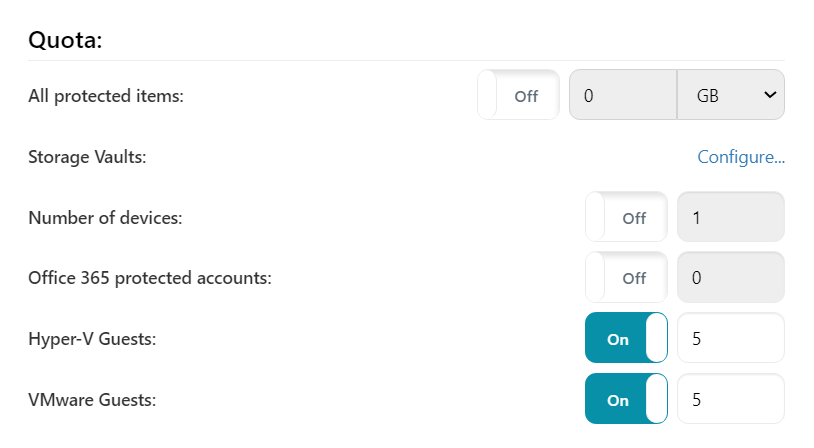
Adding this quota limit to your customer accounts will ensure that as a service provider, you are in control of how many Virtual Machines your customers are allowed to backup.
Self-Hosted Management Console Admin Account Setup Redesigned
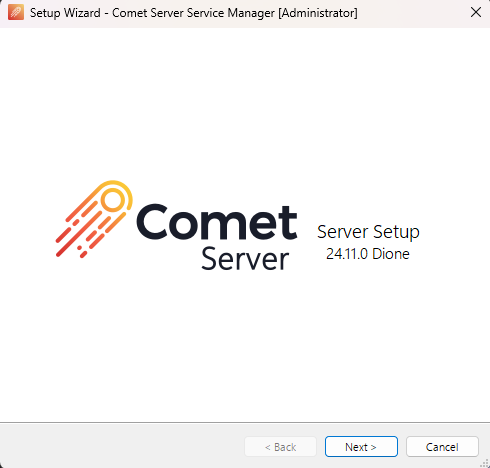
When setting up a Self-Hosted Management Console for the first time, customers will now be asked to configure the default admin account details in the setup wizard or when first opening the web interface. This redesign encourages first time Comet admins to configure memorable admin account login details.
What’s New?
Written by Mason Giles – CTO.
“What’s New?” is a series of blog posts covering recent changes to Comet in more detail. This article covers the latest changes in Comet Voyager over September and October 2024.
During September and October we shipped four and six Comet releases respectively. The releases were primarily in our Voyager series with the exception of one update per month for the Tethys release series.
Let’s take a look at some of the new features and enhancements added over this period:
Disk Image
When going to restore a Disk Image backup, there is a new option to restore the data in Hyper-V VHDX file format:
The disk format conversion happens on-the-fly as part of the restore process. It does not require any additional temporary disk space or memory. The resulting VHDX file can be used immediately in Hyper-V, or uploaded to Microsoft Azure to boot in a cloud virtual machine.
This joins our existing support for restoring Disk Image backups to VMware ESXi-compatible VMDK files, which works in the same streaming way without any temporary disk requirements.
This new capability was a highly upvoted request from our Feature Voting system. We encourage you to check out this system and let your voice be heard – at the time of writing, we have completed over 180 user feature requests. The votes are not the only thing we base our decision-making on, but they are an important input into the process.
When restoring Disk Image backups to physical hardware, using Recovery Media is essential in order to allow overwriting the device’s primary operating system partition. Users of the Disk Image Protected Item can enjoy another new feature this month: the ability to use the Create Recovery Media feature when the Comet Backup desktop app is running on Linux.
Hyper-V and VMware
Comet’s current billing model for Hyper-V and VMware Protected Items has a component based on the number of guest Virtual Machines included in the backup. Comet works with a wide range of service providers, both highly managed and low-touch, and everywhere in-between. If you are a service provider who offers the software directly, you may be surprised to find your customer backing up additional virtual machines and causing a rise in your Comet Backup bill. To help mitigate this, we have added a quota feature for the number of Virtual Machines:
Adding this quota limit to your customer accounts will ensure that as a service provider, you do not receive any unexpected charges for your users.
In the 24.9.x Voyager series, we have made additional improvements for the Hyper-V and VMware Protected Items:
When restoring data from a Hyper-V, VMware, or Disk Image Protected Item type, Comet offers a granular restore option, to extract individual files from an NTFS, EXT4, XFS, or FAT partition. This allows you to back up only the full disk image while maintaining the ability to rapidly recovery individual files.
If you use the “Latest VM State” backup option in Comet, this produces a single VHDX file inside the Storage Vault. However, if you back up Hyper-V using the “All VM Checkpoints” option, running the backup job in Comet will produce a base VHDX file and a chain of differencing disks in AVHDX format. In this case, a limitation in Comet meant that only the base VHDX file was supported for granular restore. For many service providers who do not actively maintain their checkpoint trees, this could result in only a surprisingly older file being available for granular restore. Now, in the latest 24.9.x versions of Comet, this limitation has been lifted, allowing you to perform granular restore even from each AVHDX checkpoint file.
The VMware Protected Item only had the “Latest VM State” option available and so was not affected by this limitation.
In 24.9.x, VMware users can enjoy simplified configuration as we have consolidated to supporting only the vSphere API, not any of the previous beta connection formats.
Restore
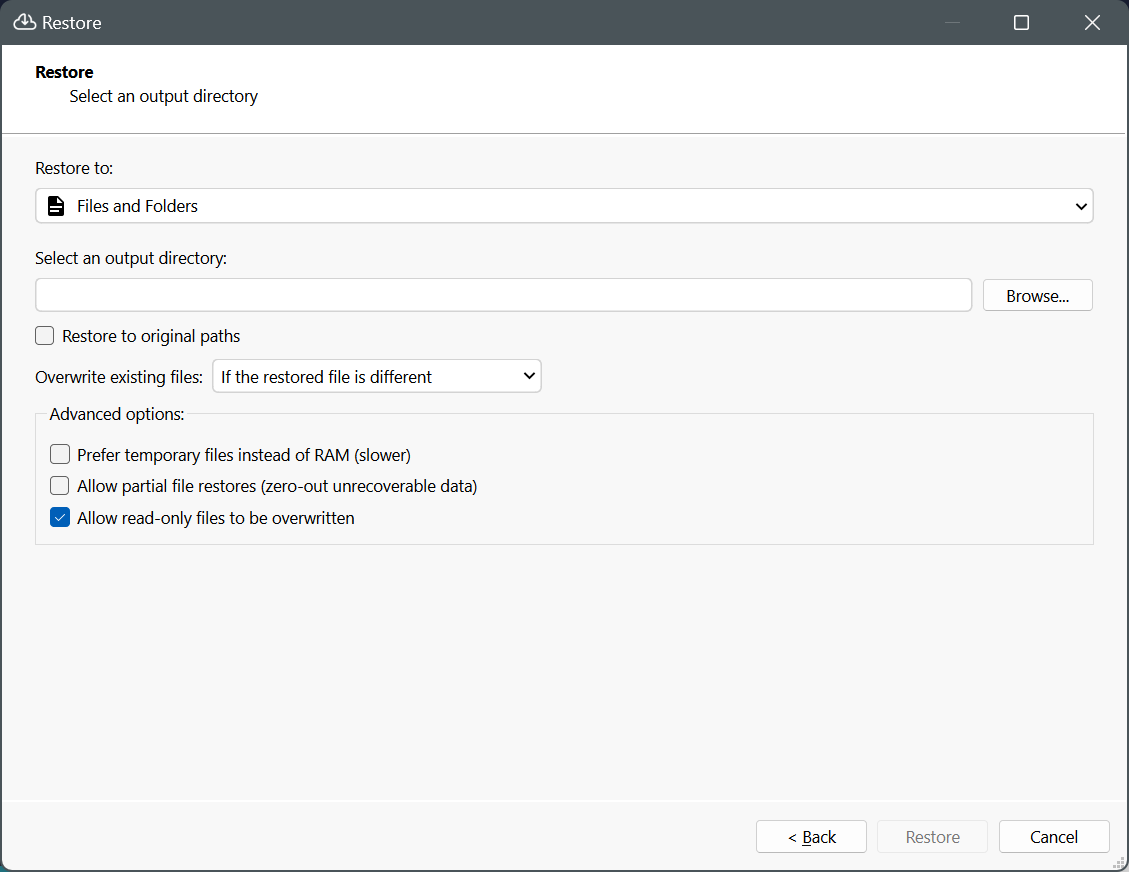
When going to restore data, you can control what happens if you restore data over the top of existing files on disk. Some common choices are to replace the existing file with the restore file; or, to skip restoring the file if an existing file is already present.
However, even if you instruct Comet to overwrite existing files on disk, an issue can occur if the existing file on disk has been set as read-only in the operating system. By default, Comet respects this setting and refuses to overwrite the existing file in this case. Respecting the file permissions is a sensible baseline behaviour, but we have encountered situations where Comet should restore the file regardless. As a result, the Comet 24.9.x Voyager series introduces a new “Allow read-only files to be overwritten” advanced option when restoring data, to bypass read-only file permissions.
Bulk actions
Comet Server has many features to make it easier for a service provider to administer a large user base. In the latest 24.9.x Voyager series, we’ve extended the “Bulk Actions” button on the Users page to support assigning user policies in bulk.
Policies are specific to a given Tenant. In previous versions of Comet, there were some situations by which the top-level administrator could assign a top-level policy to a Tenant, in a way that would have required the Tenant to access a policy existing outside their own Tenant. To clear up this edge case, when upgrading to the latest 24.9.x versions of Comet, any such policies will be copied into the target Tenant, ensuring that Tenants have tightly bounded permissions that only provide access to their own policies.
Larger service providers with multiple Comet Servers, used in a cluster with replication and/or constellation, may also appreciate the new ability to copy and paste your server settings from one Comet Server to another. This feature is also particularly helpful when migrating between the Self-Hosted and Comet-Hosted servers.
MySQL
Comet has supported backing up MySQL and compatible (e.g. MariaDB) databases ever since our earliest releases. The MySQL Protected Item type is based on the mysqldump technology in a special way that streams the database dump directly through our chunking deduplication engine and into the Storage Vault location, without needing any temporary files or spool space.
In the many years since the MySQL Protected Item was first launched, the available MySQL and MySQL-compatible engines have diverged in terms of feature set and functionality. For example, MariaDB introduced JSON functionality prior to MySQL’s implementation, and feature differences persist to this day between these two major players. Therefore, to achieve a high fidelity backup job, it is important that Comet finds a copy of the mysqldump tool that is appropriately specialized for your database to support all of its latest particular features.
In the event that mysqldump cannot be found on the system, Comet will proceed with the backup job using a bundled fallback version. This fallback is not specialized for any particular version of MySQL and may be missing support for advanced database features.
In the latest 24.9.x versions of Comet, we have extended this fallback system from only applying on Windows, to now also applying on Linux and macOS devices. Comet now also adds a notice into the MySQL backup job logs if the fallback tool is being used. This can help alert you to the fact that the backup job may be operating at a lower fidelity.
Comet Backup desktop app
Comet is used by service providers of many different sizes. Many service providers choose to use the Comet Server web interface to remotely manage their customer base; the Comet Backup desktop app is also available for self-service. Depending on your focus as a service provider, you may use Policy controls to allow or prevent end-user access to the Comet Backup desktop app.
Throughout September and October, the Comet Backup desktop app has been improved to better show cross-device names in the Activity Log dialog. This includes both a new Device Name column, and, support for showing the Protected Item names from other devices.
The Comet Backup desktop app also allows the end-user to configure their own email reports. This month, the email filters for “Time since job start” and “Time since job end” have been improved to more easily allow configuring the seconds, minutes, hours and days for the time range query.
Troubleshooting
Troubleshooting customer backup jobs is an essential part of being a service provider. The 24.9.x Voyager series of Comet includes many small changes that may make this important job a little easier.
There has been a focus on improving how Comet connects to SMB network shares. On the Protected Item side, when using the “Log in to a network share” option in a Files and Folders Protected Item, a “Test Connection” button is now offered. When using a File and Folder Storage Vault on an SMB location, the Test Connection button now more accurately represents the service user account that would perform backup and restore operations. Additionally, our dedicated SMB Storage Vault type has also been improved to seamlessly handle both domain- and workstation-based authentication, using standard Microsoft syntax.
When the Comet Backup desktop app tries to test a connection and encounters a failing error, an extra info tooltip now appears, to show you additional information when hovering over it with the mouse cursor. If the Test Connection button had been explicitly clicked, a popup will show you the full error message in its complete detail.
When looking at a backup job log, Comet will now display additional progress information during some long-running Object Lock operations. This can help you identify any performance bottlenecks you may be facing. Additionally, when viewed in the Comet Server web interface, if a given backup job was prevented from running by another job taking place to the same Storage Vault at the same time, a banner message will now show you information about the conflicting job, helping you to easily identify and resolve the cause of the conflict.
Reliability and performance
Building upon our key focus from the 24.8 Tethys release series, the 24.9.x Voyager series this quarter has continued to prioritize work on bugfixes and reliability improvements. To date, this quarter’s Voyager series has included fixes for over 50 issues, ranging from minor cosmetic to important functionality.
Our Office 365 Protected Item type has seen another major improvement, making incremental backups of Calendars, Contacts, and Messages more efficient and faster.
Comet is now much more resilient at handling certain types of network interruptions. When a large network download is interrupted, Comet is now able to resume from the point of failure in more cases, rather than needing to restart the entire transfer. Similarly if a Storage Vault has many concurrent jobs running, Comet is now more able to anticipate file changes within a remote Storage Vault and continue its operation. This can improve the performance of connecting to a Storage Vault at the start of a backup or restore job.
What’s New? Quarterly Release 24.8 Tethys
Written by Callum Sinclair – Product Engineering Manager.
This article covers what’s new in our latest Quarterly release series from June 2024 to August 2024. Read the release notes here.
Comet 24.8.0 Tethys
We’re very pleased to announce our latest Quarterly release series – Comet 24.8 Tethys. This is the the latest entry in our quarterly rollup series, that branches off from our main rolling Voyager development into a fixed target for you to qualify and build your service offering upon.
Tethys is a moon of Saturn) and is named after the Titan from Greek mythology. The best photos and scientific data about Tethys come from the 2015 visit by the Cassini spacecraft, named after Giovanni Cassini who discovered Tethys in the 1680s. Tethys was thought to be the closest moon to Saturn for 100 years, until Mimas and Enceladus were discovered in the 1780s, pushing Tethys out to third place. Tethys’ orbit is still close enough to Saturn that it passes right through Saturn’s magnetosphere. On Earth this would make for a dazzling aurora, but Saturn’s auroras are only visible in UV light.
Tethys is a lot smaller than our own moon, at only 1% of the mass, and it seems to be almost entirely made of water ice. The nearby moon Enceladus has geysers that spray ice out into space, and this tends to create a thin ring around Saturn of ice particles. Tethys orbits right through this area and is sandblasted by these ice particles, making Tethys extremely shiny and and reflective.
As for the software, Comet 24.8.0 Tethys brings 7 new features and 25 enhancements, including support for advanced Windows metadata; granular restore from Linux filesystems; additional retry features; the ability to bulk convert from Storage Role to direct-to-cloud storage; and much more.
The full set of changes can be found in the release notes.
Webinar announcement
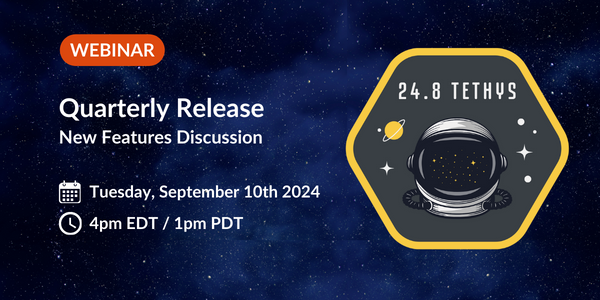
If you’d prefer to watch rather than read, we’re hosting a webinar to discuss this new quarterly release and all the new changes. Please register before we go live on Tuesday 10 September (4pm EDT / 1pm PDT) to catch up on all the latest Comet news with Comet’s CTO, Mason and Product Engineering Manager, Callum. As usual, there will be time for a live question-and-answer session at the end of the presentation.
As well as that, we have many more videos available on our website, including guides on getting started with Comet, individual features, demonstrations with our technology partners, and webinars for previous quarterly software releases.
Configurable Retries For Failed Backup Jobs
When a backup fails, it can lead to manual interventions or escalations to your technical team. Both of these are time consuming and frustrating when they occur. To prevent this, Comet retries 1000s of times during a backup to make sure it succeeds. Comet does this by retrying S3 APIs to make sure uploads and downloads succeed, as well as retrying any network errors that we determine as retryable.
Even though Comet has 1000s of retries within a backup, errors that can cause a backup to fail are inevitable. This can be from many various and often external factors such as service disruptions or hardware failures. When a backup fails due to these errors, often restarting the backup will succeed.
Our new Configurable Retries feature allows you to configure how many times a backup should attempt to retry when an error occurs, and how long it should wait to retry the job again. When this feature is configured, Comet will not mark a backup job as failed if it going to retry again later. Instead it will be marked as “Running (retry)” so you are able to see that Comet is still trying to get a successful backup.
It is important to note, that when Comet retries a job using this feature it needs to rescan all of the data in the Protected Item again. This is because it starts the job again from scratch. This does not mean all of your data will be uploaded again as Comet makes use of client-side deduplication and compression. This means that only the changes that weren’t uploaded in previous attempts will be uploaded to the Storage Vault.
You can configure the new retry feature in two different ways. The first is by policy. You are able to configure per policy how long Comet should wait after a bacukup job fails, as well as how many times Comet will retry a failing backup job before it reports the error status. When a user has this policy applied, all Protected Items configured for this user will have the new retry feature applied.
You can also configure this feature per Protected Item. This provides you with a lot of flexibility as you can select Protected Items you would like to retry, rather than applying it to all Protected Items configured for a user.
To do this, you will see a new option on the Protected Item Schedule

Overall, this is a great new addition to Comet as it allows our MSPs to have Protected Items dynamically retry when an error occurs. This will help reduce the number of escalations to technical teams for intermittent issues.
Restore Windows Disk Image Backups From Linux
In Comet 24.8 Tethys, Comet users will be able to restore Windows Disk Image backups directly from a Linux device. This makes cross-platform data recovery a lot easier as you no longer need a Windows device to restore Windows Disk Image backups.
To restore Windows Disk Image backups from Linux, you can use the Comet Backup desktop app or the Comet Server web interface. Because the Disk Image backup will have been performed by another device, you will need to login to the Linux device using the same username and password as the Windows device. This will allow you to restore Protected Items from other devices. The examples below are from the Comet Backup desktop app running on Ubuntu.

Once you have selected the Windows Disk Image Protected Item you would like to restore from you have four different methods to recover the files. These are restore to physical device(s), restore as virtual disk files, granular restore and restore as VMware virtual disks.

Restoring to physical device(s) allows you to write the data directly to a physical or virtual drive that is connected to the Linux device. You can then use the drive to boot the restored Windows device.
Restoring as virtual disk files allows you to create a VMDK file that contains all of the restored data. You can then load the VMDK into your preferred hypervisor such as VMware ESXi to boot the restored Windows device.
Granular restore allows you to recover a selection of Files and Folders without having to restore or boot the whole disk. This is great if you just need to grab a couple of important files quickly without having to restore the entire Windows device.
Restoring as a VMware virtual disk is similar to our virtual disk restore mode, except it converts the VMDK into a format that is bootable by VMware without any other steps required.
Each of these options provide you with flexibility to recover data from our Windows Disk Image Protected Item, whether it’s the entire device, or just a couple of urgent files you need to grab.
Linux Based USB Recovery Media For Windows Disk Image Backups
We are excited to introduce a new Linux based recovery media to restore Windows Disk Image Protected Items. Prior to Comet 24.8 Tethys, creating USB recovery media relied heavily relied on Windows to create a small ISO with Comet pre-installed to restore Disk Image backups.
The Windows based recovery environments relied on WinRE (Windows Recovery Environment) or Windows To Go to be installed on the device creating the recovery media. This meant for distributions of Windows where WinRE or Windows To Go is not available, it is not possible to create USB recovery media for Comet.
In Comet 24.8 Tethys, you will now be able to create a Linux based recovery environment. The process uses Docker to create a Debian based ISO with Comet pre-installed. This works well with our new Windows Disk Image backup restore capabilities from Linux announced above.
To create a Linux based recovery image, click “Create Recovery Media” on the Comet Backup desktop app. If the device also has Docker installed, you will see the new Linux ISO option becomes available.

Once the recovery image has been created, simply image it to a USB device. You will then be able to select it as a bootable device.
Once the recovery media has booted on the device, you will automatically be logged in and shown the pre-installed Comet Backup desktop app.
Automatic Storage Vault Locking Cleanup
Sharing a Storage Vault is a fantastic way to reduce storage costs as Comet is able to deduplicate data across all devices that share a vault. This means, we only need to store one copy of the same file that exists on all devices. To ensure data is safe at all times, Comet uses Storage Vault locking to ensure one device doesn’t remove essential data that another device was using.
If a PC shuts down unexpectedly such as if a laptop runs out of battery, Comet may leave a Storage Vault locked. This prevents other Comet devices that share the same vault from working, as when a Storage Vault is locked it means a device is running a data sensitive operation. One such operation is a retention pass.
Comet attempts to clean up Storage Vault locks, but this only happens when a new backup job runs. To improve how frequent backup jobs fail due to Storage Vaults being locked, Comet will now automatically remove vault locks when a devices wakes from sleep or when it boots.
This is a great improvement for our customers who have multiple devices sharing the same Storage Vault.
July 2024: What’s New
Written by Callum Sinclair – Product Engineering Manager.
“What’s New?” is a series of blog posts covering recent changes to Comet in more detail. This article covers the latest changes in Comet Voyager over July 2024.
There were six Comet releases during July – four in the Voyager release series, plus two updates for our Enceladus release series.
We’ve landed a few large and exciting features:
Back Up and Restore Advanced NTFS Features
The NTFS filesystem on Windows supports many advanced features. One feature is its advanced permission and ACL support, allowing control over which Windows user accounts have access to read or access certain files. Another special NTFS feature is Alternate Data Streams (ADS), which allow the file’s main content to be accompanied by entirely different data streams.
In Comet version 24.6.2 or later, we have added a new option “Back up extra system permissions and attributes” to configure for File & Folder Protected Items.
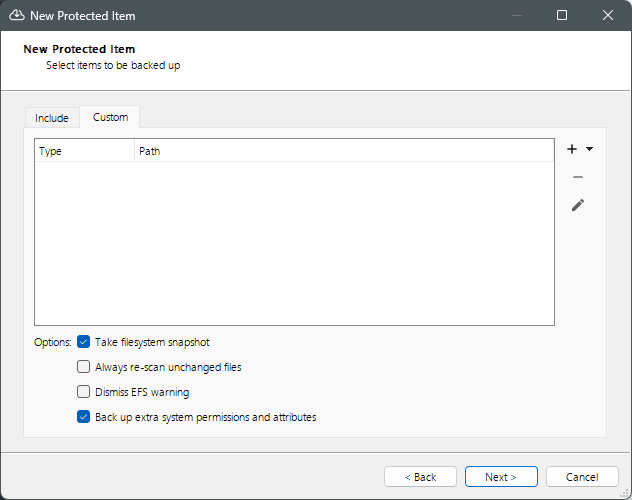
When the new option is selected, Comet will back up the following additional NTFS data:
- Attributes (system, hidden, integrity)
- Alternate Data Streams (ADS)
- Extended Attributes (EA)
- Full Windows permissions (SACL / DACL)
The extra permissions and attributes are preserved for files and directories. When the file or directory is restored from a Windows device, the permissions and attributes will be re-applied. If the restore takes place on a non-Windows device, the extra information will not be available.
Protecting Alternate Data Streams on Windows devices is vital for maintaining data integrity, application functionality and security. You can now easily include these important attributes in your backups, ensuring a robust and secure backup strategy.
Granular Restore for FAT32, EXT4, and XFS filesystems
Granular Restore enables the recovery of individual files and folders from within a virtual disk image, without having to restore the entire disk.
As part of Comet 24.6.3, we have improved our Granular Restore feature to work with FAT32, EXT4, and XFS filesystems. For partners protecting Linux based Virtual Machines using our Hyper-V or VMware Protected Items, you will be able to recover individual files and folders without needing to restore the entire VM. To make use of this feature, all you need to do is upgrade to Comet version 24.6.3 or later.
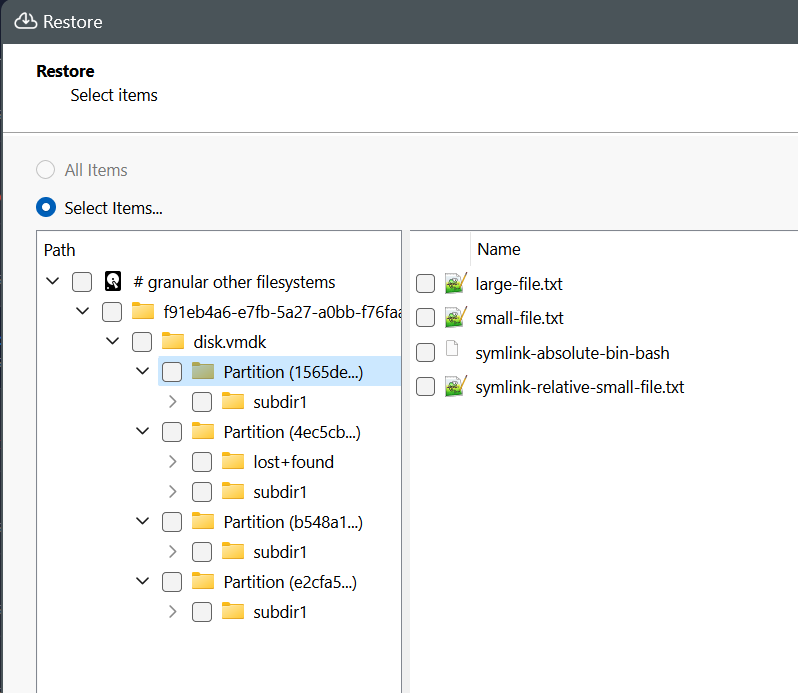
This means you are able to recover data faster, reducing downtime and enhancing productivity.
Improved retries for S3 Storage Vaults Downloads
Networking related errors are an inevitable part of downloading data from a S3 Storage Vault. Previously, when downloading data from an S3 Storage Vault, Comet would attempt up to 10 retries to successfully download the data. However, each time an error occurs, the process has to start over from the beginning. This is particularly problematic for Comet’s index files, which can become quite large.
If Comet is unable to successfully download the index files, it is unable to start the back up job. This is because the index files are a critical part of how Comet backs up data to Storage Vaults.
With Comet 24.6.2, we have improved downloads from S3 Storage Vaults to dynamically restart from where they left off, instead of starting over from the beginning. This means that when an error occurs, Comet can resume the download from the point where the interruption happened. This reduces the amount of data that needs to be re-downloaded and improves the overall reliability of Comet when backing up to a S3 Storage Vault.
Notice: Windows System Backup Protected Item Deprecation
Our Windows System Backup Protected Item is being deprecated. Before we added our Disk Image Protected Item, Windows System Backup Protected Item was a great way to backup and restore entire Windows disks. However, it required spool space (temporary storage) to be able to perform this backup. This means for a 500GB disk, Comet requires an additional 500GB of free space for this Protected Item to work.
As part of our deprecation process for our Windows System Backup Protected Item, upon upgrading to Comet 24.6.3 or later, back up jobs for this Protected Item will now finish with a warning status. Please convert these Protected Items to Disk Image Protected Items before this option is removed from Comet in November (Comet Release 24.11).
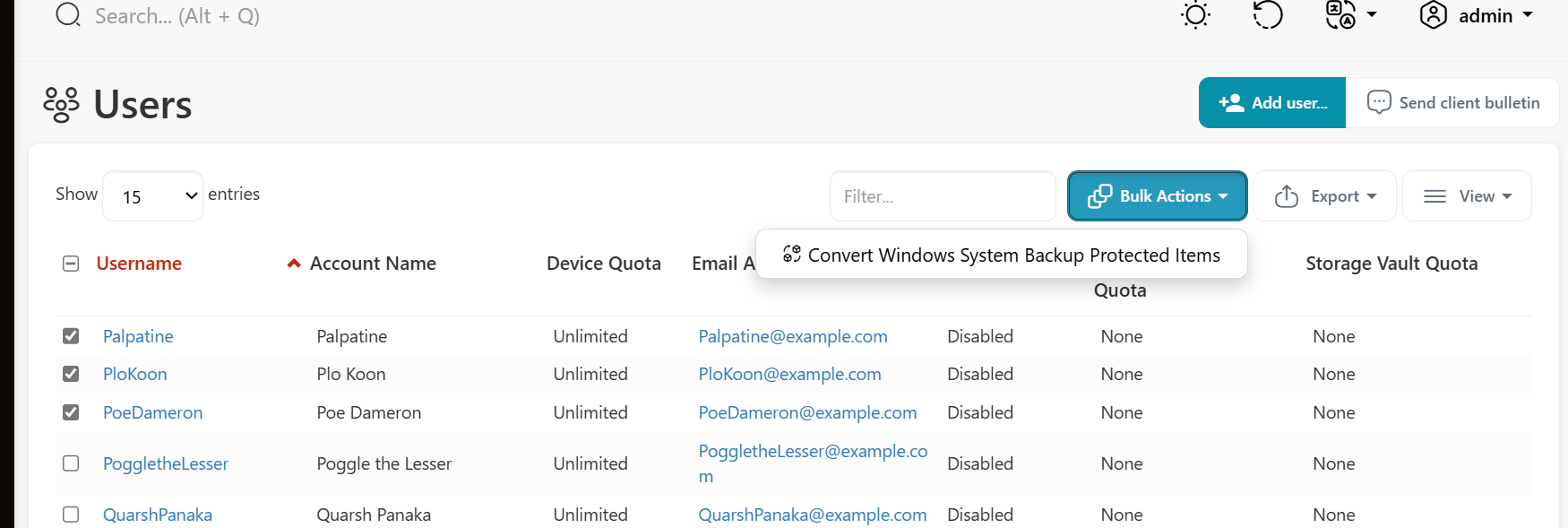
We’re committed to continuously improving our services and look forward to delivering even more enhancements in the future. Thank you for your continued support!
June 2024: What’s New
Written by Callum Sinclair – Product Engineering Manager.
“What’s New?” is a series of blog posts covering recent changes to Comet in more detail. This article covers the latest changes in Comet Voyager over June 2024.
There were three Comet releases during June – two in the Voyager release series, plus one update for our Mimas release series.
We’ve landed a few large and exciting features:
Faster Measurement of Storage Vault Sizes
Enforcing Storage Vault Quotas is an important feature of Comet, providing our Managed Service Providers (MSPs) with the ability to restrict how much data a customer is allowed to back up. This feature offers flexibility to accommodate a wide range of business cases and ensures that resources are used efficiently.
In Comet version 24.6.1 and later, we’ve made a significant enhancement to how we measure the size of stored data in a Storage Vault. This improvement dramatically reduces the time required to start a back up job.
In our test cases, for a Storage Vault with a few terabytes of data stored it would take 10 or more minutes to measure how much data was stored. In Comet 24.6.1 this now takes a few seconds. This change benefits all our customers by enabling faster job initiation, which in turn means that jobs complete quicker.
This improvement not only enhances the user experience by reducing wait times but also optimizes resource usage, allowing our MSPs to provide even better service to their clients. We’re excited about this update and the positive impact it will have on your back up operations.
Software Build Role Tenant Settings
Software Build Role is a Comet Server feature that is responsible for generating client software installers of Comet. When enabled, it activates the Download Client Software page in the Comet Server web interface.
We have now added the ability to enable or disable the Software Build Role per tenant, providing greater flexibility for Managed Service Providers (MSPs) using Comet. Additionally, we’ve introduced support to configure whether an admin account can change these settings via policy.
These enhancements offer MSPs more control over their software build configurations, allowing for tailored management and improved service offerings.
Constellation Role Memory Improvements
Constellation Role is a Comet Server feature that provides insight across multiple Comet Servers and is essential tool for automatically removing unused storage. It works by verifying if data in a storage bucket belongs to an active user account on a Comet Server and removes data with no associated user, which can occur if a user is deleted without deleting their stored data.
In older versions of Comet, Constellation Role required a large amount of RAM to perform this function. However, in Comet 24.6.0, we have significantly reduced the RAM usage for Constellation Role, resulting in substantial speed and resource improvements. This means Constellation can prune larger amounts of data faster, and often more reliably.
This has a real benefit for our customers using Cloud Based storage, as removing unused data when it is no longer required is cost effective in the long run.
IP Rate Limiting Added to Comet Server Interface
To improve the usability of our IP rate limiting controls, we have added the ability to configure them in our Comet Server web interface. Previously this feature was only configureable via directly editing the config file of the Comet Server.
By configuring IP rate limits you can control the maximum bandwidth for IP addresses using regular expressions and set limits in bytes per second. Multiple rules can be defined, creating rate-limiting domains that match incoming requests. Rate limits apply separately to ingress and egress traffic, allowing simultaneous upload and download limits.

IP rate limiting can help maintain consistent performance and fair bandwidth usage across all users, and with our latest Comet release, it is even easier to configure.
Impossible Cloud Webinar
If you haven’t seen it, check out our recent blog post announcing our Impossible Cloud Integration as well as our joint webinar on Premier Cloud Storage & Backup for Europe’s MSPs on Wednesday, July 17th at 11am CET (Central European Time).
New Charging Model for Hyper-V and VMware Protected Items
You will notice that Hyper-V and VMware Guests will be charged daily per Protected Item from July.
This updated charging model can lead to a reduction in your overall bill. By charging per day per Protected Item, we align costs more closely with actual usage, potentially lowering your expenses.
We’re committed to continuously improving our services and look forward to delivering even more enhancements in the future. Thank you for your continued support!
What’s New? Quarterly Release 24.5 Enceladus
Written by Callum Sinclair – Product Engineering Manager.
This article covers what’s new in our latest Quarterly release series from March 2024 to May 2024. Read the release notes here.
Comet 24.5.0 Enceladus
We’re very pleased to announce our latest Quarterly release series – Comet 24.5 Enceladus. This is the the latest entry in our quarterly rollup series, that branches off from our main rolling Voyager development into a fixed target for you to qualify and build your service offering upon.
Enceladus is a moon of Saturn and is named after the giant Enceladus of Greek mythology. There are a few worlds that are thought to have liquid water oceans beneath their frozen shell, but Enceladus sprays its ocean out into space where spacecraft can sample it. From these samples, scientists have determined that Enceladus has most of the chemical ingredients needed for life, and likely has hydrothermal vents releasing hot, mineral-rich water into its ocean. Enceladus is about as wide as Arizona, and it also has the most reflective surface in our solar system. Because it reflects so much sunlight, the surface temperature is extremely cold, about minus 330 degrees Fahrenheit (minus 201 degrees Celsius).
For users coming from the previous 24.2 Mimas quarterly release series, Enceladus adds 6 new features and 38 enhancements. Some of the new features we are excited about are:
- Hyper-V Changed Block Tracking (CBT) support
- Impossible Cloud Storage Templates
- SMB Storage Vaults
- Comet Backup desktop app Protected Item wizard refresh
- Syncro integration
- Server Self Backup enabled by default
The full set of changes can be found in the release notes.
Webinar announcement
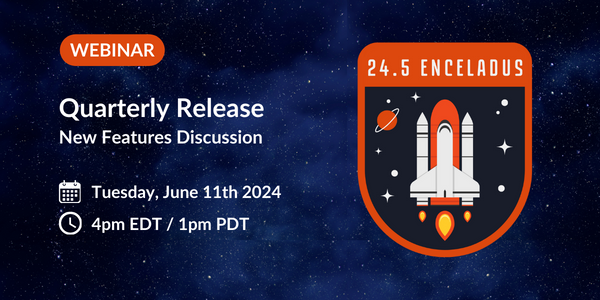
If you’d prefer to watch rather than read, we’re hosting a webinar to discuss this new quarterly release and all the new changes. Please register before we go live on Tuesday 11 June (4pm EDT / 1pm PDT) to catch up on all the latest Comet news with Comet’s CTO, Mason – and as usual, there will be time for a live question-and-answer session at the end of the presentation.
As well as that, we have many more videos available on our YouTube channel, including guides on getting started with Comet, individual features, demonstrations with our technology partners, and webinars for previous quarterly software releases.
Microsoft Office 365 Protected Item Performance Improvements
Over this month, we have made significant improvements to the backup performance of our Microsoft Office 365 Protected Item. These performance improvements mean the backup job completes faster, as well as reduces the amount of data we need to upload. We expect partners to see Microsoft Office 365 Protected Items finish up to 30 times faster.
Disk Image Drive Letter Selection
When configuring a Disk Image Protected Item in the Comet Server web interface, it can be difficult to configure when the device is not currently connected to the Comet Server. To help partners configure a Disk Image Protected Item more easily, we have added a new option to select disks to protect by drive letter.

Bulk Upgrade CPU Limits
Our Bulk Upgrade feature is a great way to keep Comet Backup desktop app installs up to date with the latest version that the Comet Server is running. However, for Comet Servers with many tenants using custom branding, a Bulk Upgrade campaign to upgrade older clients consumed significant CPU time building new client installers quickly.
In Comet 24.3.8 we added a new configuration option to limit the maximum number of CPU cores Comet can use during a Bulk Upgrade campaign. This is a fantastic improvement as it reduces the burden on system resources during a Comet Server upgrade. It also provides a more robust Bulk Upgrade campaign, as Comet Backup desktop app installs can be upgraded without overwhelming the Comet Server’s resources. For more information, you can check out our documentation here.
Windows System Backup Protected Item – Deprecation Notice
Our Windows System Backup Protected Item is being deprecated. Before we added our Disk Image Protected Item, Windows System Backup Protected Item was a great way to backup and restore entire Windows disks. However, it required spool space (temporary storage) to be able to perform this backup. This means for a 500GB disk, Comet requires an additional 500GB of free space for this Protected Item to work.
Because of this limitation, and how difficult it is to setup, we have always recommended partners use our Disk Image Protected Item. To assist partners through this change, we have built a Windows System Backup to Disk Image conversion tool. For more information, you can see our documentation on the tool here.
We will be removing this Protected Item in November (Comet Release 24.11).
April 2024: What’s New?
Written by Callum Sinclair – Product Engineering Manager
What’s New? is a series of blog posts covering recent changes to Comet in more detail. This article covers the latest changes in Comet over April 2024.
There were three Comet releases during April – two in the Voyager release series, plus one update for our Mimas release series.
We’ve landed a few large and exciting features this April:
Hyper-V CBT (Changed Block Tracking)
Hyper-V CBT is now available in our Voyager series. Hyper-V CBT performs efficient backups of Hyper-V Virtual Machines by only reading blocks of a virtual disk that have changed since the last backup job. This means Comet only needs to upload the data that has changed inside the VM without having to read and upload every byte.
You will find two new Hyper-V Backup Mode types when setting up a Hyper-V Protected Item. These are Latest VM State (Changed Block Tracking) and Latest VM State (Standard). You can read more about what these new modes do in our documentation here
Under the hood our two new Hyper-V Backup Mode types use WMI (Windows Management Instrumentation) and RCT (Windows Resilient Change Tracking) to perform the backup. This is a completely new way for Comet to backup Hyper-V VMs as our old implementation used Windows VSS (Windows Volume Shadow Copy Service).
#### New Hyper-V Backup Option One: Changed Block Tracking using WMI and RCT

#### New Hyper-V Backup Option One: Hyper-V Backup using WMI
#### Hyper-V Changed Block Tracking Using
This enhancement improves our Hyper-V backup offering, ensuring faster backups of your Virtual Machines while also needing to upload less data.
Impossible Cloud Storage Templates
We’re pleased to announce that Impossible Cloud is now available as a built-in Storage Template in our Voyager series. If you enter top-level credentials into the Storage Template, Comet can use them to provision private buckets with separate credentials for each user, allowing seamless direct-to-cloud backup.
#### Impossible Cloud IAM Storage Template

#### Impossible Cloud IAM Storage Template with Object Lock
#### Impossible Cloud Partner API Storage Template

As a quick reminder – when using the Storage Templates, it’s likely you’ll want to configure cleanup for cloud buckets that are no longer being used by any user account. Comet’s solution for this problem is called Constellation Role, and it’s available from the settings page of your Comet Server. In Constellation, you can enter the same credentials for it to search through. When a Constellation report runs, it finds all your buckets; checks all the user accounts; cross-references the users’ Storage Vaults with the available buckets; and deletes any discovered buckets that are not in use by any user account.
Constellation Role is designed to scale up to clusters of multiple Comet Servers, with any mix of server replication, Storage Role, or direct-to-cloud buckets created by the Storage Template feature. You should have exactly one Constellation Role server amongst your entire cluster of Comet Servers.
Comet-Hosted Single Sign On
Users can now sign into Comet-Hosted servers using their account.cometbackup.com accounts. This feature simplifies access to Comet-Hosted servers, allowing users to utilize their existing Comet Backup account credentials for authentication. To enhance security, users are encouraged to set up two-factor authentication (2FA) on account.cometbackup.com.

This feature has already been enabled, and will be used the next time you click the login button from the My Services page on account.cometbackup.com.

In addition, once you have clicked the login button on the My Services page you will notice the new “Login with Comet Account Portal” button appear on the login screen of your Comet-Hosted server. This button will only appear on browsers where you have clicked the My Services login button before. We have done this to ensure we don’t break any rebranding you have configured by showing a big “Login with Comet Account Portal” button.
Comet-Hosted London Region Now Available
We are pleased to announce that Comet-Hosted is now available to be hosted in the London region. Comet users now have the choice of four geographically diverse locations to choose from when selecting where their Comet-Hosted server should be located.
Continued Comet Improvements
Throughout April, we rolled out over twenty fixes and enhancements aimed at improving the overall quality and performance of Comet. These updates underline our commitment to providing a reliable and efficient backup solution for our users.